Integration via WordPress plugin
Install the plugin and show the cookie banner
Requirements and compatibility
Before proceeding with the installation, make sure your WordPress site meets the following requirements:
- Minimum WordPress version supported: 5.3
- Compatibility with major themes and page builders (e.g. Elementor, WPBakery)
- Administrator access to the WordPress control panel
Installation steps
- Log in to your WordPress dashboard.
- Go to the Plugins section and click on Add new.
- Search for "Avacy" in the plugin search field.
- Click on Install now and then on Activate.
Once the plugin is activated on your site, connecting it to Avacy requires the Webspace Key of your web space. Here's how to retrieve it, depending on your situation:
Web space not configured yet
If you haven't completed the configuration of your first web space on Avacy yet, follow the Web space configuration guide first. At the end of the guided setup you'll find the screen to choose the integration method: select WordPress and you'll be given the key (Webspace Key) required by the plugin.
Web space already configured
If your web space is already configured, follow these steps:
-
Log in to your Avacy account at avacy.eu/login.
-
Select the web space.
-
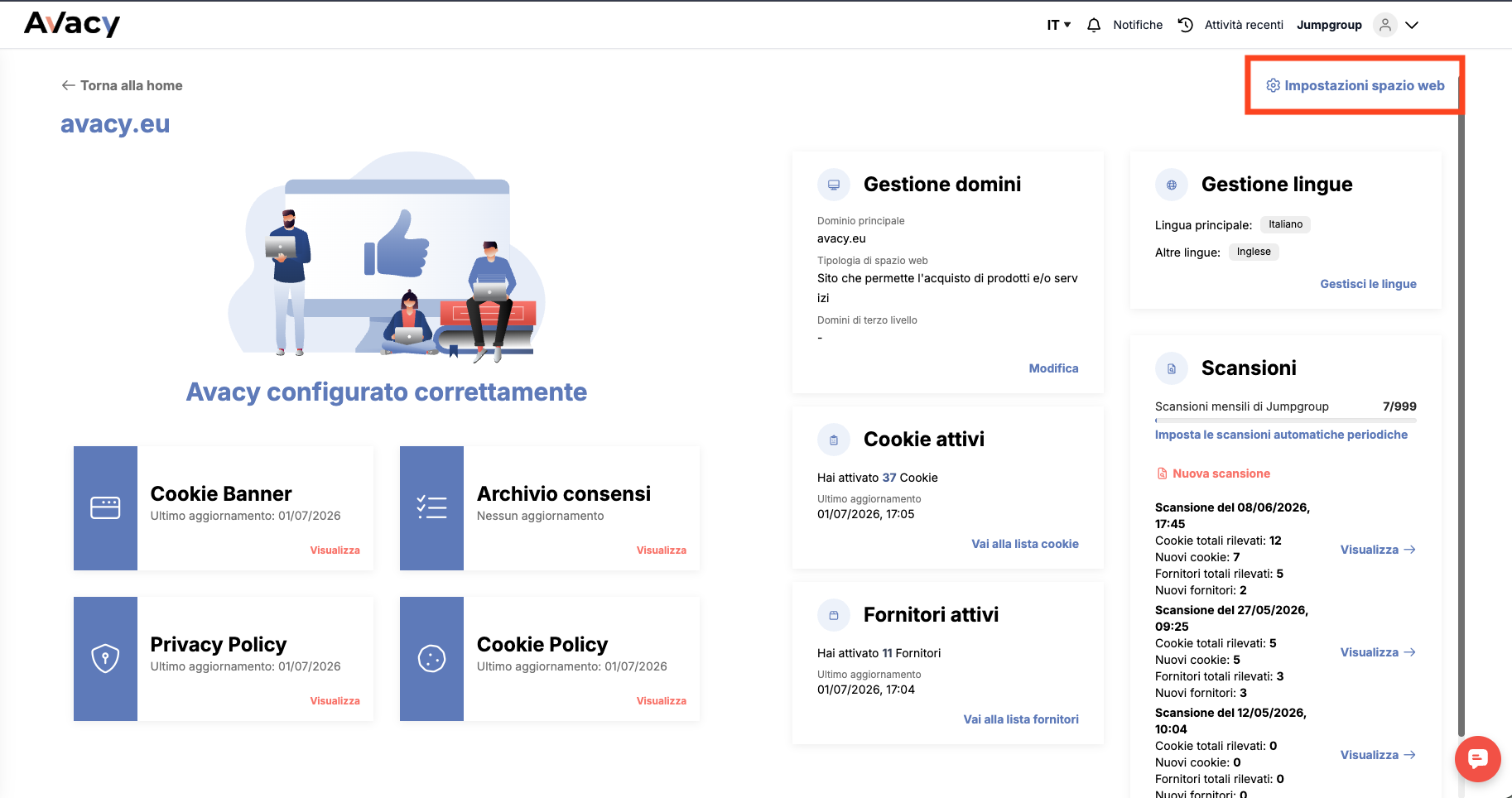
In the web space dashboard, click Web space settings at the top right.
-
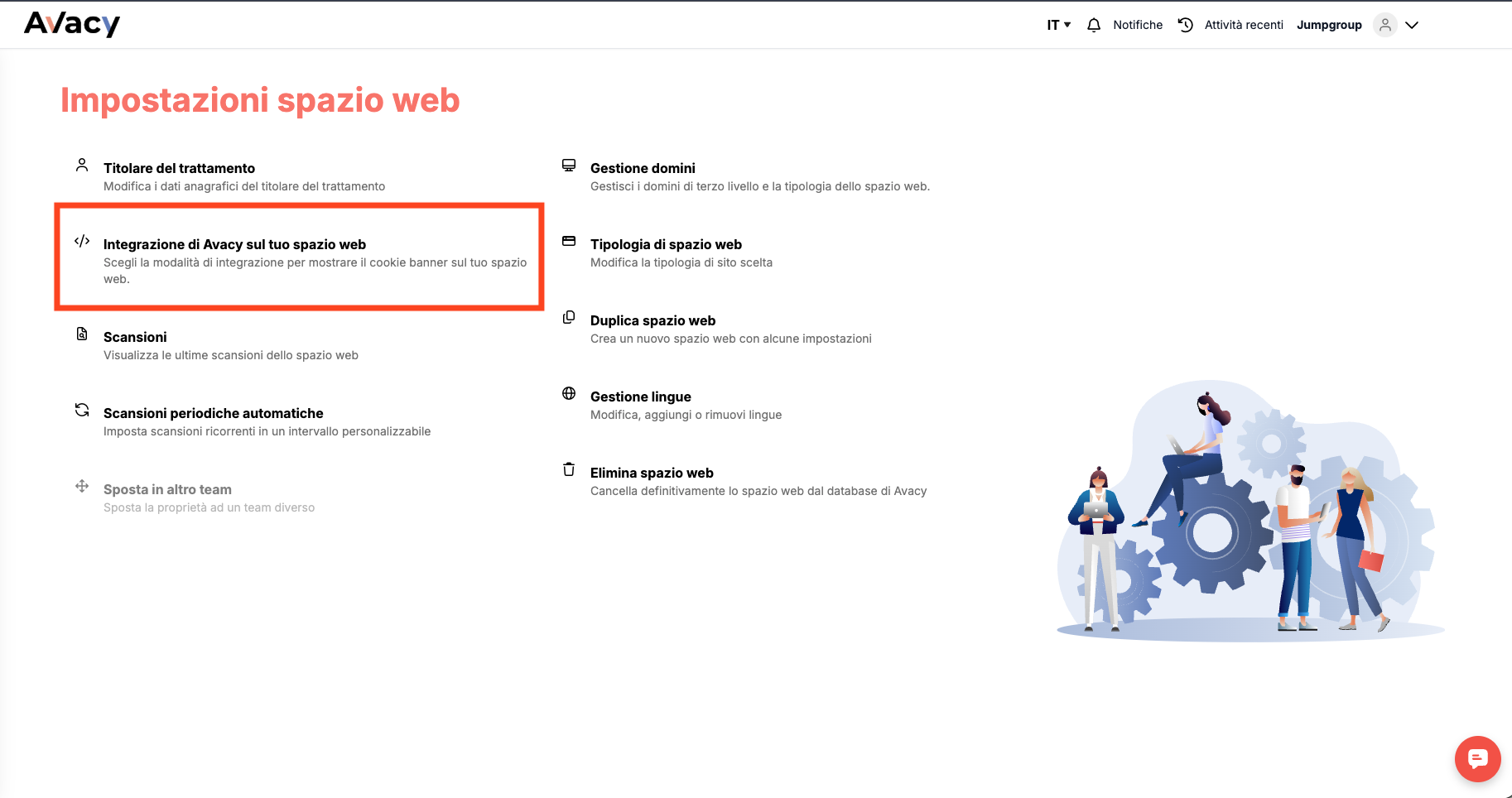
Click Avacy integration on your web space.
-
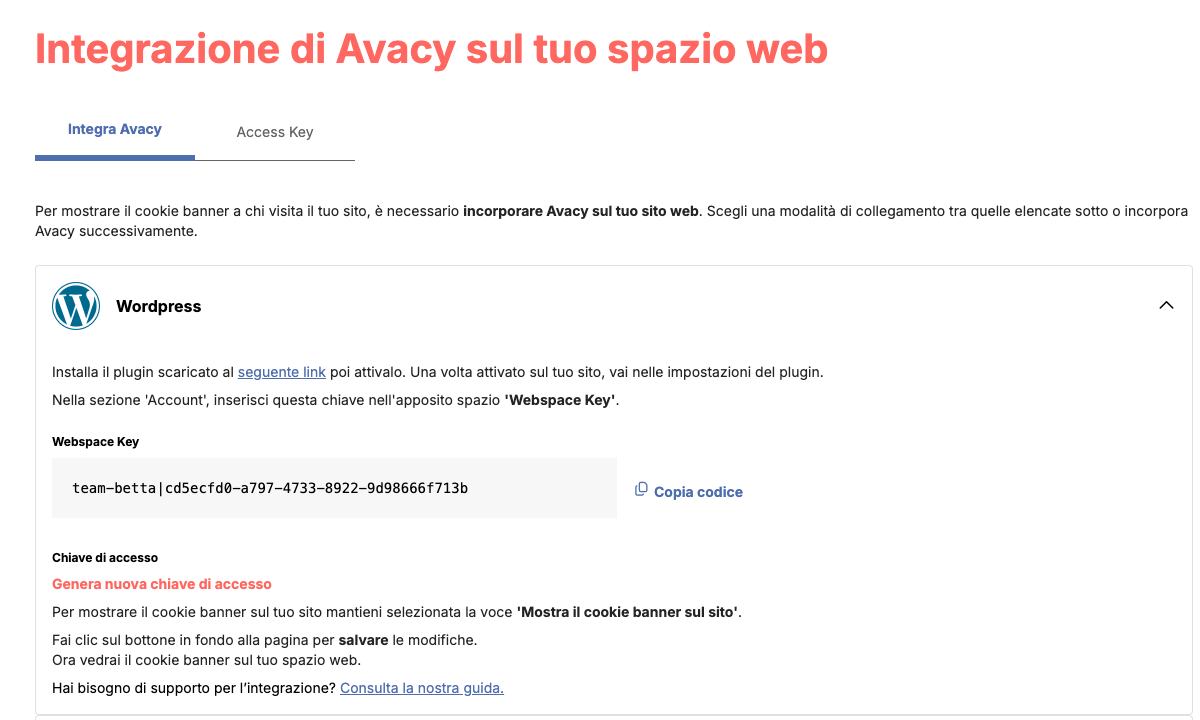
Select WordPress and copy the key (Webspace Key).
Enter the key in the plugin
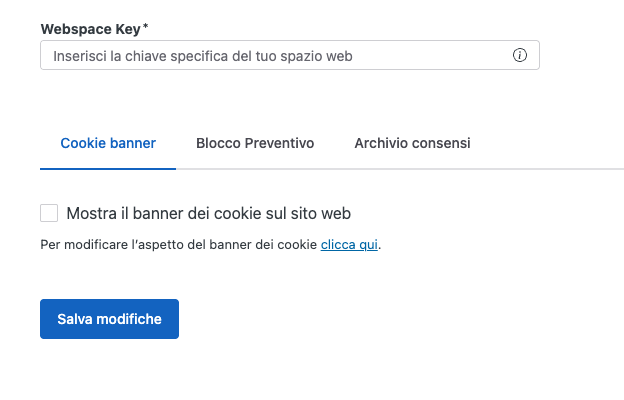
Go to the plugin settings page on your WordPress site and paste the copied key into the Webspace Key field.
Once the plugin is connected, simply tick the checkbox with the option *Show the cookie banner on your site.
WP Consent API integration
Avacy is compatible with the WP Consent API plugin, the WordPress standard for centralized consent management.
When the WP Consent API plugin is active on the site, Avacy automatically detects it and:
- registers itself as a compliant CMP (no configuration required);
- forces the consent type to
optin, so other plugins relying on WP Consent API behave conservatively by default; - forwards the user's banner choices to the framework via
wp_set_consent, mapping Google Consent Mode flags to WP Consent API categories.
The mapping applied is the following:
| WP Consent API category | Granted when the user accepts… |
|---|---|
functional | always allow |
preferences | personalization_storage |
statistics | analytics_storage |
statistics-anonymous | analytics_storage |
marketing | any of ad_storage, ad_user_data, ad_personalization |
If the WP Consent API plugin is not installed, the integration stays dormant and Avacy keeps working as usual.